 English
  Arabic
  French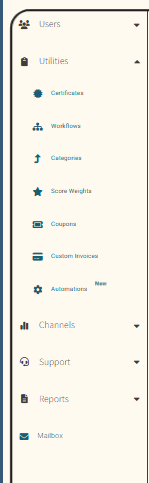
The Auto Enrollment feature is specifically designed to help you automatically assign relevant courses to users based on their job titles. By setting up auto-enrollment rules, you can ensure that employees, managers, or other user groups are instantly and consistently enrolled in the training programs and courses that are most applicable to them—whether free, paid, or both.
To open the Auto Enrollment:
- From the Sidebar Menu, click Utilities to expand the options.
- Select Automations, look for the gear icon labeled Automations.
To work efficiently on the screen, do as follows:
- Navigate to the Utilities section from the left sidebar and select Automations.
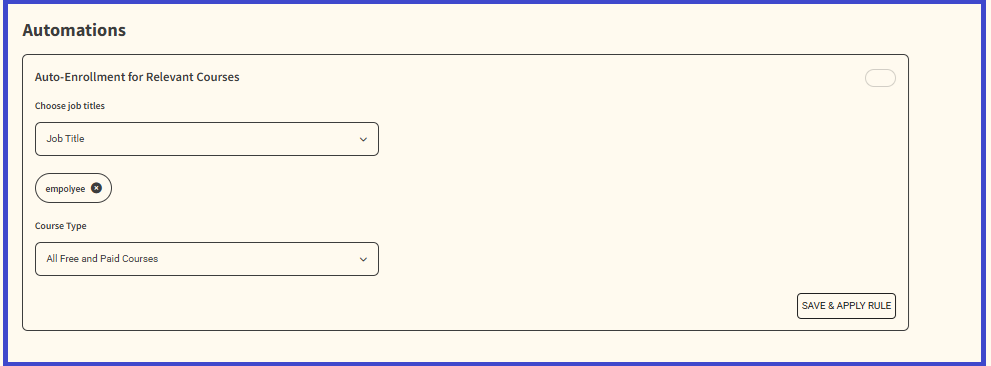
- Click the Job Title dropdown under Choose job titles.
- Select the job titles you want to apply auto-enrollment to (e.g., “employee”). The selected job title will appear as a tag.
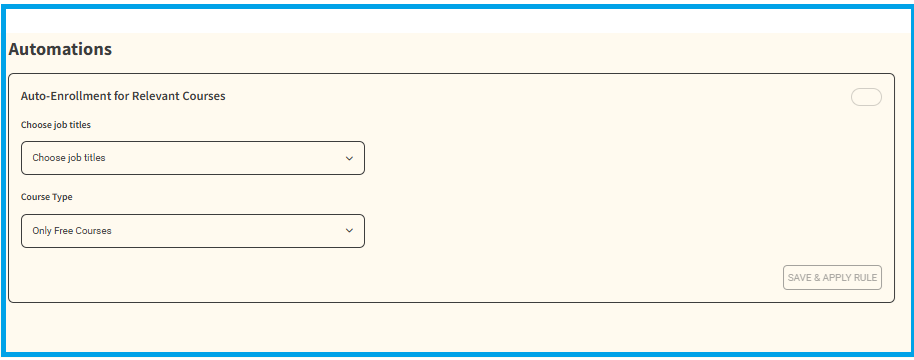
4. Click the Course Type dropdown.
5. Choose your preferred option (e.g., “All Free and Paid Courses”).
6. Toggle the switch at the top right of the box to enable auto-enrollment to enable the Rule
7. Click SAVE & APPLY RULE to confirm and activate your auto-enrollment settings