 English
  Arabic
  French
Table of Contents
To Create a New Layout: #
- On the “Certificates | Letters” page, click the “Manage Layouts” button, then click the “Create New Layout” button.
- Add a name for your layout.
- Select the layout orientation; landscape, or portrait.
- Upload a background image from your computer.
- Choose the color of your layout, or simply type the name of the color you want in the corresponding field.
- Choose the color of your structure.
- Check the “Have Border” checkbox if you want the add borders for your layout.
- Choose the border color.
- Check the “Customize QR Location” checkbox if you want to customize a place in your layout for the QR code.
- Specify the QR code location by clicking the up/down arrows, or simply by typing the correct dimensions with your own hand.
- Check the “Customize Signature Location” checkbox if you want to customize a place in your layout for the signature.
- Specify the signature location by clicking the up/down arrows, or simply by typing the correct dimensions with your own hand.
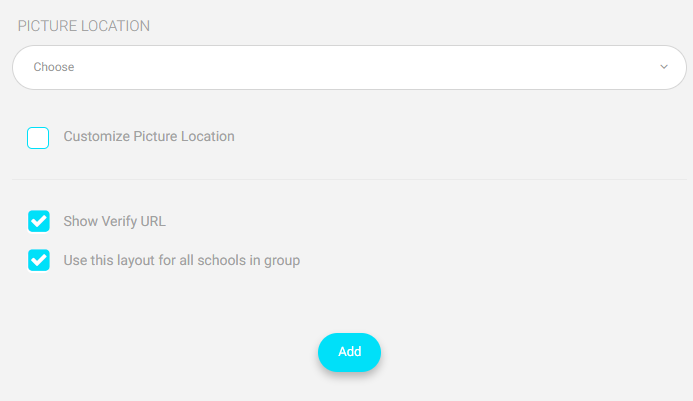
- Check the “Show Verify URL” checkbox to show the verification URL.
- Check the “Use this layout for all schools in group” checkbox to make this layout usable for all schools in your school group.
- Click the “Add” button to submit the layout.